
Converting from PDF to flipbook is a simple process using software like Myflipbook. The reverse operation, saving or downloading a flipbook as a PDF file, can be much more complex, especially if the flipbook itself doesn’t have a Download button.
To download a flipbook as a PDF when there’s no Save or Download button, the only way is to extract the images from the individual pages and then merge them into a PDF file. This process could be done manually, but it would be prohibitive if the flipbook has many pages. So how do you save a flipbook as a PDF? The answer to this question is described in the following paragraphs and depends on the type of flipbook you want to download.
Step 1: Install a Flipbook to PDF converter extension
Go to the Chrome Web Store and install the flipbook downloader based on the type of the flipbook you need to save on your pc in PDF format.
- FLIPHTML5 & ANYFLIP to PDF downloader (this works for all flipbook created with Fliphtml5 and AnyFlip service)
- HEZYNE Flipbook TO PDF saver (this works for all flipbook created with Heyzine service)
- Archive.org Flipbook to PDF downloader (this works for all book available on Archive.org and Openlibrary.org)
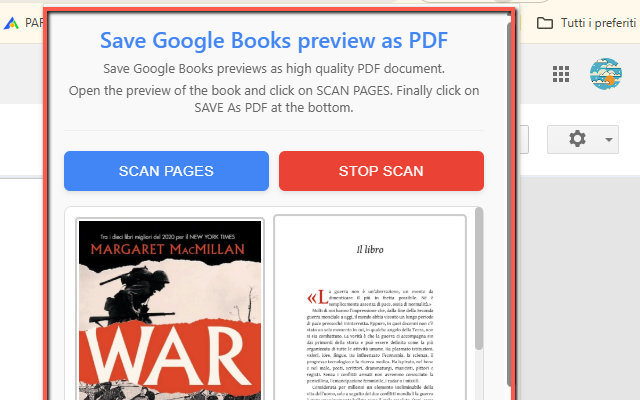
- Google Books (flipbook) to PDF downloader (this works for all flipbook/book preview available on Google Books)
- Flipsnack | Pubitas | Publuu | FlipbookPDF | PubHTML5 to PDF downloader (this works for all flipbooks created on FlipSnack, Pubitas,. Publuu, FlipbookPDF services)
- FlippingBook to PDF Converter (this works for all flipbooks available on flipping book)
- Online Kindle book to PDF ((this works for all flipbooks available on read.amazon.com, kindle cloud reader)

Step 2: Open the Flipbook
Open to the flipbook URL (e.g. https://fliphtml5.com/jrpsd/lqcg/I_edizione_VBS_school_magazine/ ). Be sure that the flipbook is open and working (you should be able to navigate between pages). The extensions above described works fine with all book and flipbook you fin on: FlipHTML5.com, Heyzine.com, Archive.org, Books.Google.com, FlipSnack, AnyFlip, etc,
Step 3: Open the Flipbook to PDF downloader Chrome Extension
Open the extension. You will see a blue button “Scan Pages”. Click on it and the extension will start to navigate and detect all pages (including hidden ones). Once the scan is finished do not close the extension because it will automatically start to capture all images (one image per page). Finally you will be able to view all pages of the flipbook
Step 4: Save the flipbook as PDF
Click at the bottom of the extension on “Save as PDF”. Wait for processing (may take 1–3 minutes for large flipbooks).
Step 5: Download & Use
The PDF will be saved to your Downloads folder (it is the default download folder for Chrome). Once downloaded open it to view the PDF.
NOTE: The free version of the extension will add a “watermark” on the output PDF file. You can remove watermark purchasing the unlock code.
OK, now that you have the PDF file, you can print, share, or archive it. Here is a short video that shows how this extension will work. If you have heyzine or fliphtml5 flipbooks to download, you will be able to save the pdf in just a couple of minutes!
Below a video tutorial. For any questions or requests feel free to contact the developer to: webservice2t [at] gmail [dot] com