
How to Convert a Canva PDF into a Flipbook

Canva is one of the most popular tools for designing brochures, presentations, portfolios and catalogs. But once you export your design as a PDF, the result is still static. If you want a more modern and engaging presentation, turning your Canva PDF into a flipbook is a smart next step.
Create your design in Canva, export it as PDF, then import that file into MyFlipbook to generate an interactive HTML5 flipbook you can publish online or host yourself.
What you’ll learn in this guide
- Why Canva designs work well as flipbooks
- Why a static Canva PDF has limitations
- How to convert a Canva PDF into a flipbook step by step
- How to publish the final result
Why many users start with Canva
Canva is popular because it makes design accessible. You can create visually attractive brochures, portfolios, presentations and catalogs without needing advanced graphic design skills. It offers ready-made templates, drag-and-drop editing and easy export to PDF.
The problem is that a PDF exported from Canva is usually just a static file. It may look good, but it does not offer the same browsing experience as a flipbook.
Why convert a Canva PDF into a flipbook?
How to convert a Canva PDF into a flipbook
Step 1: Create your design in Canva
Start by designing your brochure, catalog, magazine, guide or portfolio in Canva. Use clear page layouts, readable fonts and good quality images so the final PDF will look polished.
Step 2: Export the design as PDF
Once your Canva project is ready, export it as a PDF. This file will be the base document for the flipbook conversion.
Step 3: Import the PDF into MyFlipbook
Open MyFlipbook and load the PDF you exported from Canva. The software converts your static document into an interactive HTML5 flipbook.
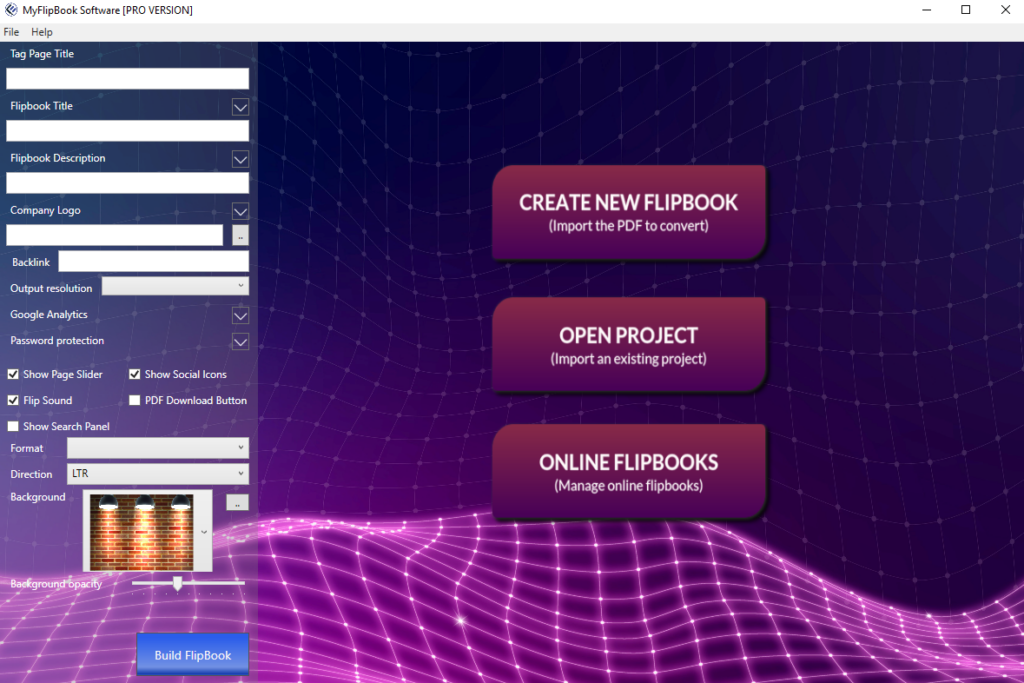
Step 4: Customize your flipbook
You can personalize the viewer with branding elements such as background, colors or logo. If your PDF includes clickable links, these can often be preserved as well.
Step 5: Export and publish
Export the final flipbook and upload it to your website, or use it as a self-hosted interactive publication for clients, portfolios or marketing projects.
Best use cases for Canva to flipbook conversion
- Business brochures
- Product catalogs
- Digital magazines
- Creative portfolios
- Training guides and presentations
Why use MyFlipbook after Canva?
Canva is excellent for design. MyFlipbook is ideal for transforming that design into a more engaging digital publication. The two tools work well together: Canva handles the visual creation, while MyFlipbook handles presentation and publishing as an interactive flipbook.
- Simple workflow from PDF to flipbook
- Useful for self-hosted publishing
- Great for portfolios, brochures and catalogs
- Better reading experience than a flat PDF
FAQ
Turn your Canva PDF into an interactive flipbook
Design in Canva, export as PDF, and use MyFlipbook to publish it as a professional online flipbook.