
A Flipbook is a browsable file that is usually created from a PDF document. It is a convenient and convenient way to share promotional material such as catalogs, brochures, magazines and flyers. The flipbook, unlike the static PDF file, offers the user an interactive and more enjoyable reading experience. Browsing through a digital catalog attracts the user’s attention more.
We have already seen how to make a digital flipbook from a PDF. Once the flipbook is created, however, many people find it difficult to share it via email (even offline) or to publish it online on their website (created with WordPress or with platforms like Wix). Below we will see just how to do this publishing and / or sharing operation. Read on to find out how easy it is to do, especially if you use the right software tools.
How to embed a Flipbook into a Website (WordPress, Wix, Weebly) or Email
Here are the simple steps to follow to generate a flipbook and then insert it into your WordPress website, Wix or Email (for sharing)
Step 1. Create the flibpook
The software we suggest to use to create a Flipbook is MyFlipbook. It is the unique software able to convert a PDF into a SINGLE html file that includes all images and object of your flipbook.
Unlike other flipbook software, MyFlipbook allows you to create flipbook in a single file and generatres flipbook for Offline usage too.
With MyFlipbook all links in the PDF will be automatically imported and added to the output flipbook. You can also add Youtube Video in the file.
Here is a screenshot of this program:
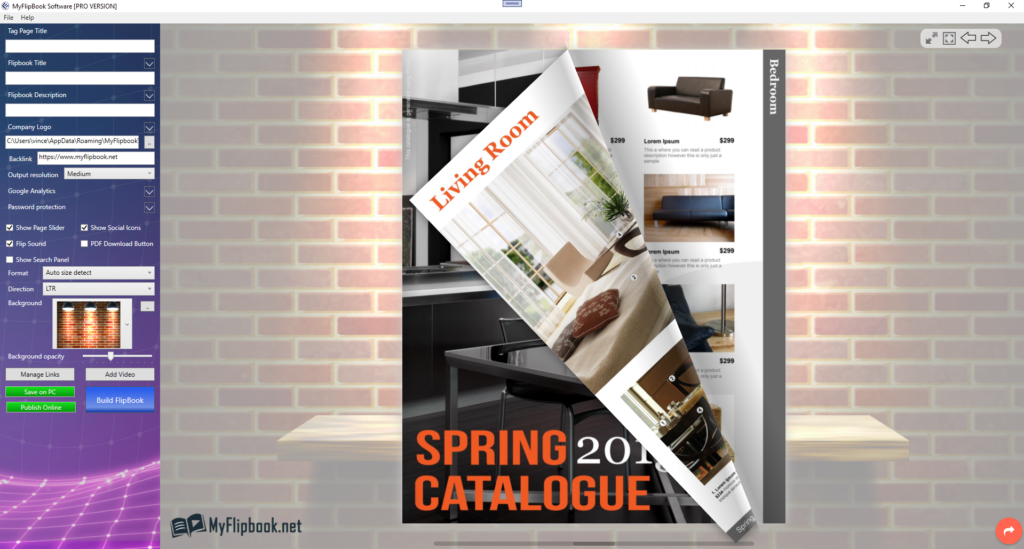
Once you import a PDF, the flipbook will be automatically generated. Then you just need to click on SAVE ON PC button to save it on your computer (in a .htm file).
You can also click on PUBLISH ONLINE to upload the flipbook online and you will receive the link of your flipbook ready to share o add on your WordPress or Wix website.
Step 2. Embed the flipbook on your Website or share it via Email
If you have a website based on WordPress or created on WIX, you can easily insert the flipbook adding an image (e.g read the flipbook, or an image/screenshot of the cover of your PDF/flipbook) and then link that image to your flipbook URL
Alternatively you can add this simple code (iframe) in the html code of the page:
<iframe src="your flipbook url" width="800" height="400"></iframe>
You can adjust width and hight value as you want. For a responsive flipbook we suggest to use the following code:
<iframe src="YOUR FLIPBOOK URL" frameborder="0" allowfullscreen="allowfullscreen" style="width:100%;min-height:650px"></iframe>
Adding iFrame code to your WordPress site
On WordPress, to view the HTML code of the page you just need to go to “Articles” section and then select the article or page where you want to add the flipbook. Then click on “HTML” tab to see the code and add the “iframe” code above.
On Wix, instad, you need to follow these steps:
Adding Custom Code to your WIX site
- Go to Settings in your site’s dashboard.
- Click the Custom Code tab under Advanced Settings.
- Click + Add Custom Code at the top right.
- Paste the code snippet in the text box.
- Enter a name for your code. …
- Select an option under Add Code to Pages: …
- Choose where to place your code: …
- Click Apply.
Insert Flipbook into Email
If you want to share the flipbook via email, it’s very simple. You just need to attache the html file of the flipbook created with MyFlipbook software.
How to embed a Flipbook in Jimdo, Squarespace, Weebly, Site 123, Zyro or Flazio
Besides to WordPress and Wix, there are a lot of other Website Builder that people uses to manage their own website. The most popular are Jimdo, Squarespace, Weebly, Site 123, Zyro and Flazio.
Some of these services allows you to add a “iframe” code in the page and so you will have to problems to embed your flipbook using this code:
<iframe src="your flipbook url" width="800" height="400"></iframe>
or:
<iframe src="YOUR FLIPBOOK URL" frameborder="0" allowfullscreen="allowfullscreen" style="width:100%;min-height:650px"></iframe>
But if you are not able to edit the html code or add iframes, the solution is to add (in the page) an image (with the preview of the flipbook) and then link this image to the flipbook (hosted on another server). You can host the flipbook on MyFlipbook.net or on FlipbookPDF.net (it’s 100% free).